1 SSO Upgradation
1.1 Current vCenter 5.1
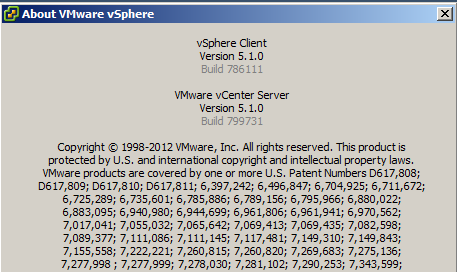
1.2 Go to vCenter Installer and Select vCenter SSO>Install
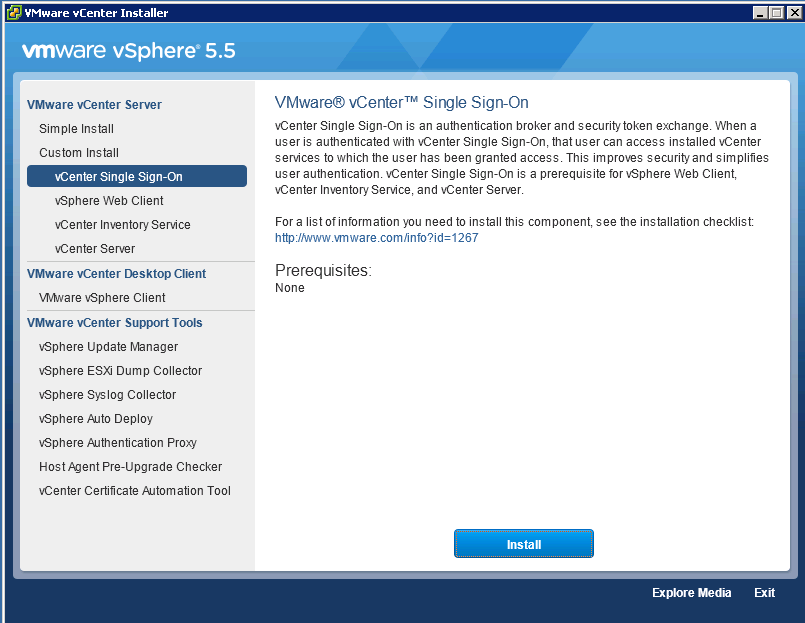
1.3 Certificate will pop-up. Select OKContinue reading “Upgradation from 5.1 to 5.5”
Reblog by Anupam Pushkar
1 SSO Upgradation
1.1 Current vCenter 5.1
1.2 Go to vCenter Installer and Select vCenter SSO>Install
1.3 Certificate will pop-up. Select OKContinue reading “Upgradation from 5.1 to 5.5”
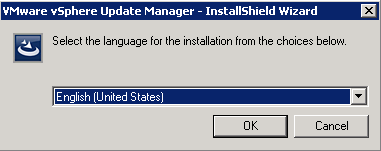
1.1 Select the setup and Select Language
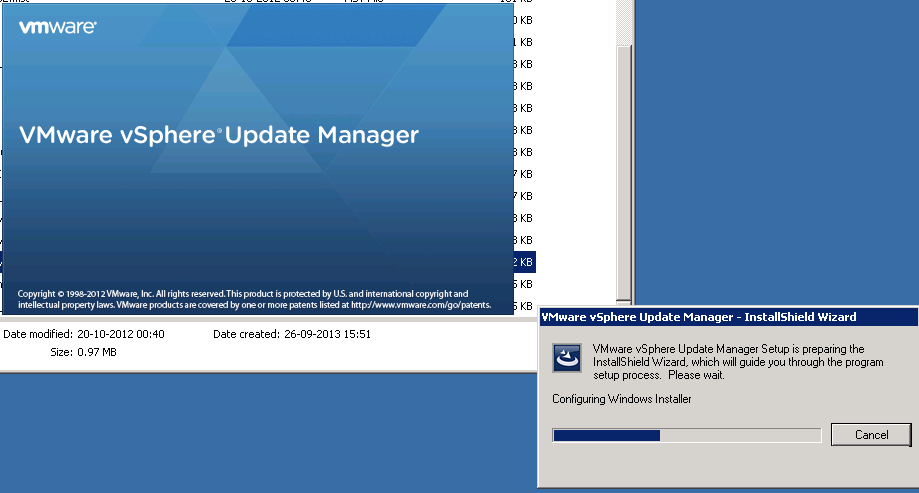
1.2 Initial setup in progress
1.3 Select Next.
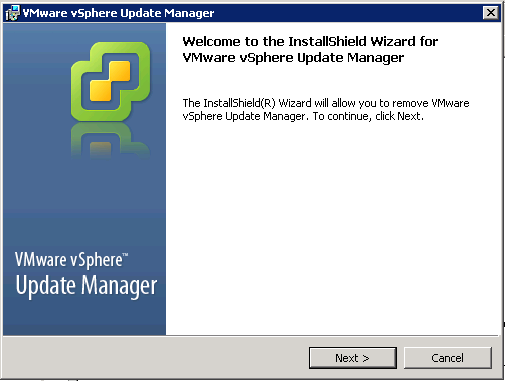
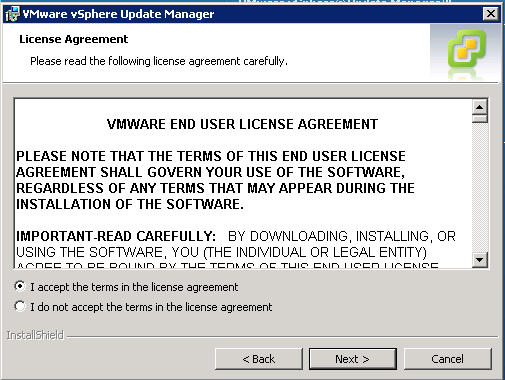
1.4 Accept the EULA
1.5 Uncheck Download updates and select next.Continue reading “1. Installation of vCenter Update Manager”
Section 1. Introduction
Section 2. CPU
Section 2.1 Worlds and Groups
Section 2.2 PCPUs
Section 2.3 Global Statistics
Section 2.4 World Statistics
Section 3. Memory
Section 3.1 Machine Memory and Guest Physical Memory
Section 3.2 Global Statistics
Section 3.3 Group Statistics
Section 4 Disk
Section 4.1 Adapter, Device, VM screens
Section 4.2 Disk Statistics
Section 4.2.1 I/O Throughput Statistics
Section 4.2.2 Latency Statistics
Section 4.2.3 Queue Statistics
Section 4.2.4 Error Statistics
Section 4.2.5 PAE Statistics
Section 4.2.6 Split Statistics
Section 4.3 Batch Mode Output
Section 5 Network
Section 5.1 Port
Section 5.2 Port Statistics
Section 6. Interrupt
Section 7. Batch Mode
Esxtop allows monitoring and collection of data for all system resources: CPU, memory, disk and network. When used interactively, this data can be viewed on different types of screens; one each for CPU statistics, memory statistics, network statistics and disk adapter statistics. In addition to the disk adapter statistics in earlier versions, starting with ESX3.5, disk statistics at the device and VM level are also available. Starting with ESX 4.0, esxtop has an interrupt statistics screen. In the batch mode, data can be redirected to a file for offline uses.

 vPower